
macOS Ventura improves Spotlight's functionality with rich search results, image search and more – Ghacks

Spotlight is one of the most useful tools on Mac. macOS Ventura improves its functionality by adding new ways to use the app.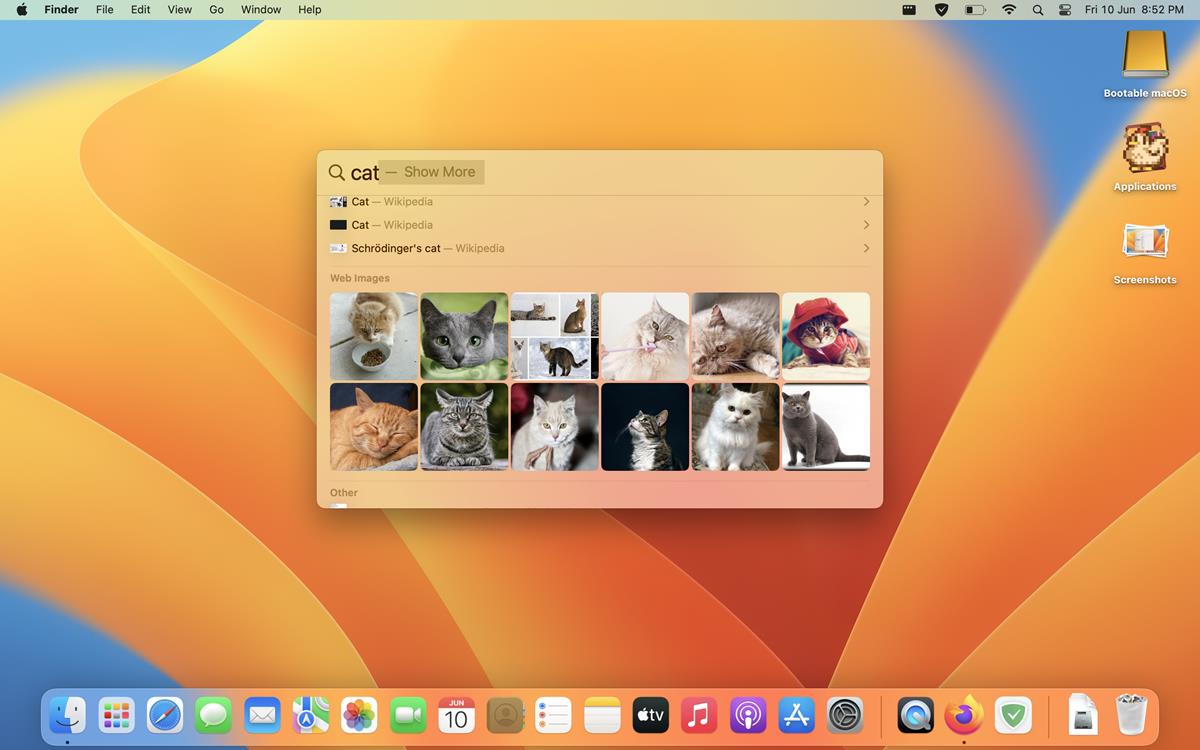
Finder’s best feature is now available in Spotlight. When you are looking for files using search, press the space bar to preview the file directly in the panel. Quick Look saves you some time, which might have been wasted opening a file to see if it is the one you wanted to use.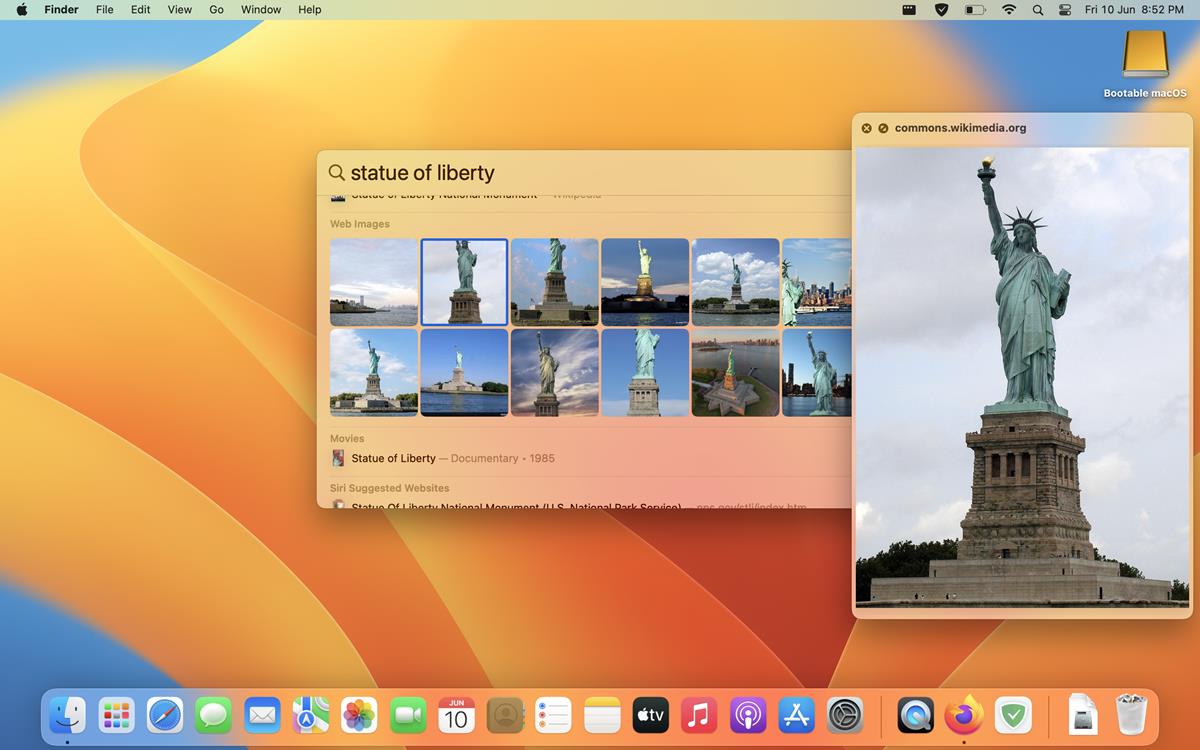
It works with images, PDFs, documents, Mail, and more.
Spotlight can now display information from web results directly in its interface. The search tool can be used to look up Contacts from your Mail. You can search for Musicians or Actors, and hit the Enter key to show more information about them right in the pane. This also works with Movies, TV Shows, Sports, etc. It also displays Businesses that you search for.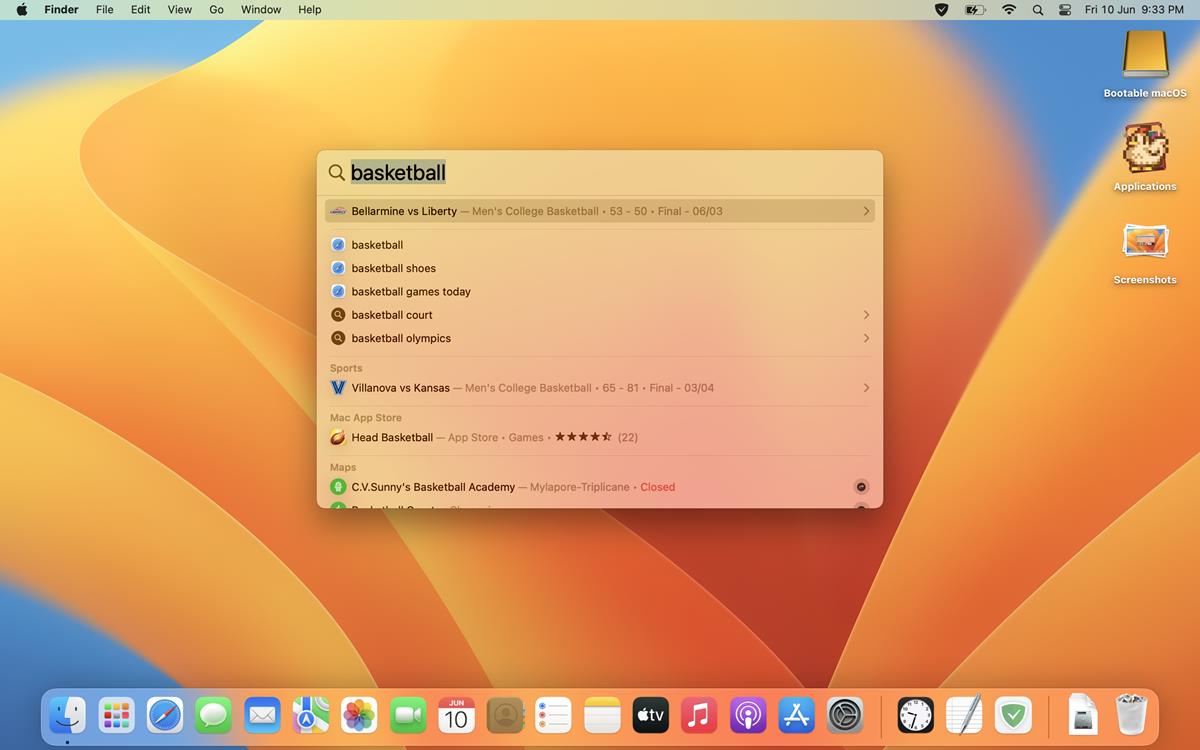
e.g. If you wanted to check the live score of a game, you can type your query in Spotlight and it shows you the update directly. Press the enter key to view a detailed scorecard with more information, links, highlights, images, etc.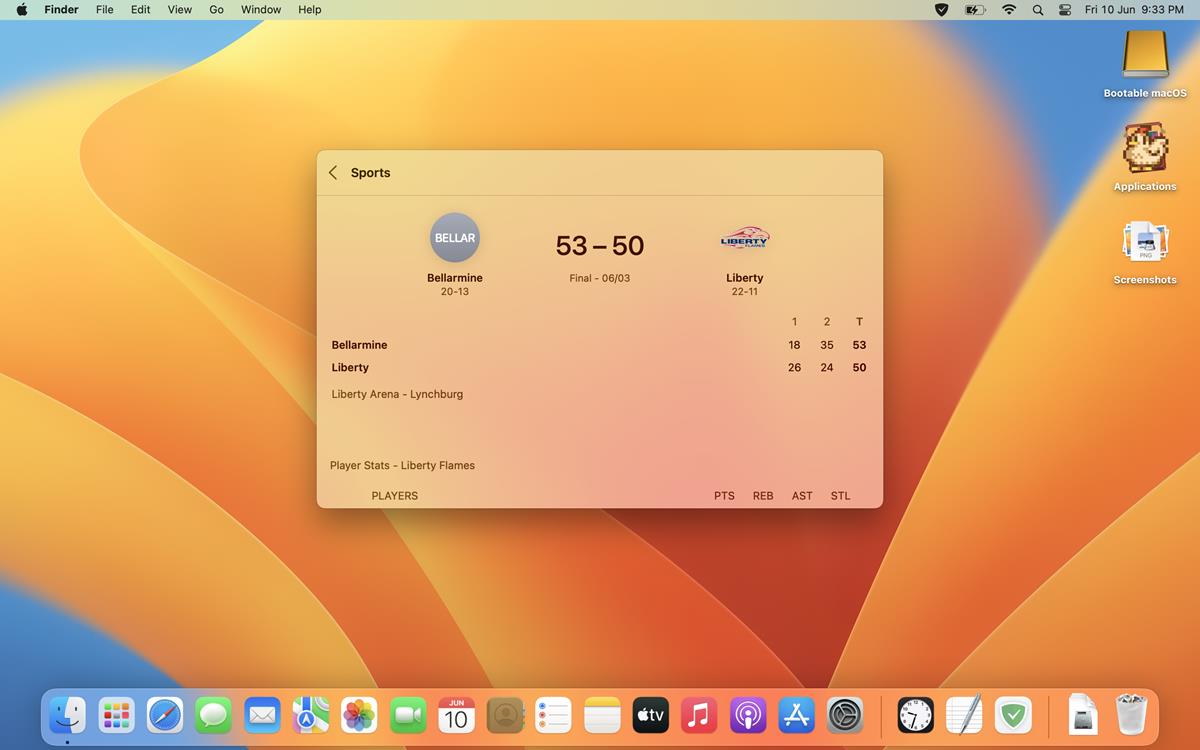
While performing a search using the tool, scroll down the pane to see images related to your query. It currently displays photos of animals, people, famous places, etc.
Let’s say I wanted to run a search for the Statue of Liberty. I can select an image from the results and press the space bar to preview it in Quick Look, or click the image to view it in Spotlight. It includes the source URL, which opens in your default web browser.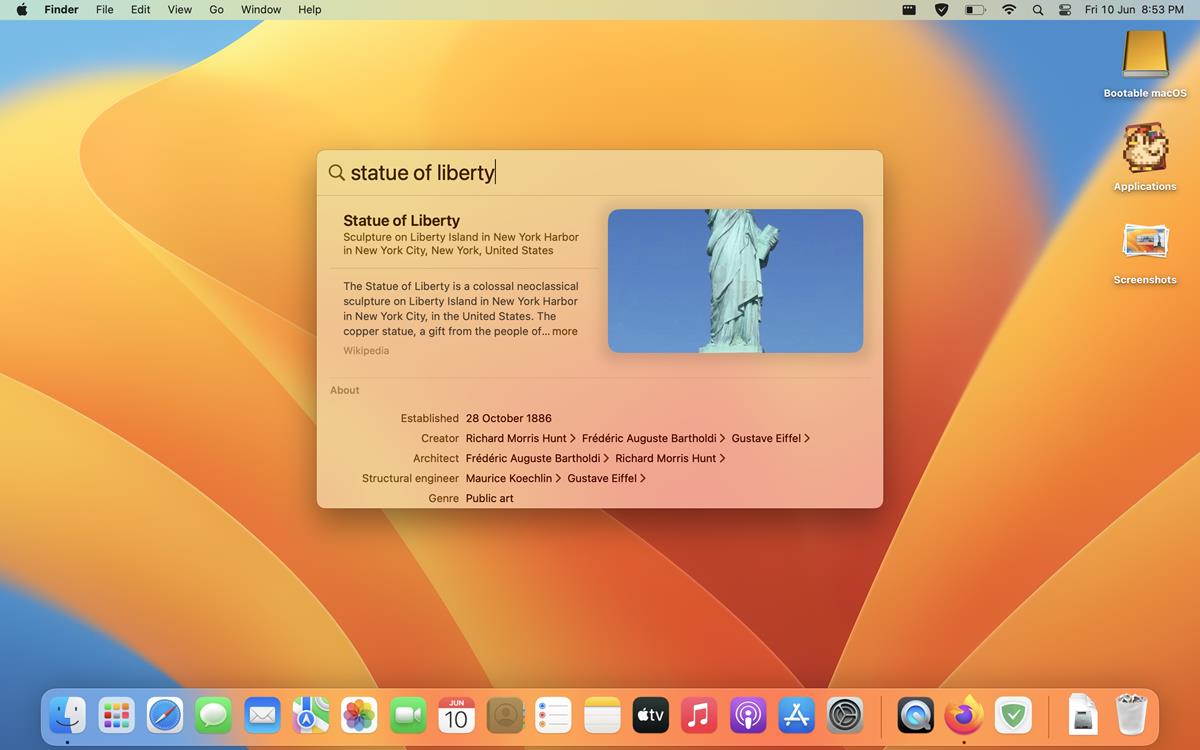
Or, I can hit enter after typing the keywords, and Spotlight will display a summary about the monument in its window. That is pretty impressive.
It’s not quite like the Search in Windows 11 which displays trending topics and other recommendations, Spotlight’s implementation is better because it only shows what you search for.
macOS Ventura allows Spotlight to find images in your iCloud Drive, Photos, Messages, Notes and Finder, making it very easy to find the media that you are looking for. Apple says that it can even detect images based on the content like “dog in car”. The new version also adds support for Live Text in Spotlight, which uses optical character recognition (OCR) to retrieve text from images.
Spotlight in macOS Ventura can be used to create quick actions without opening the corresponding app. e.g. Type “Create Timer”, and hit enter. It will ask you how long to set the timer for.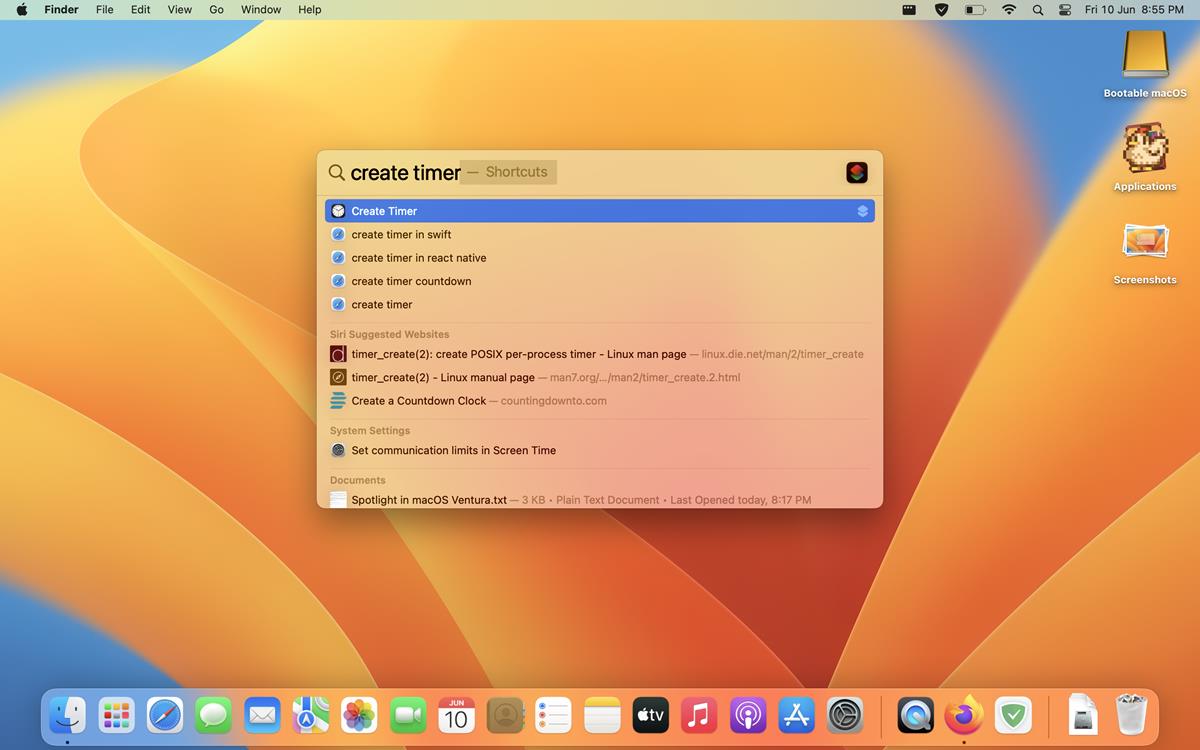
Once it runs out, the Clock app will display a notification.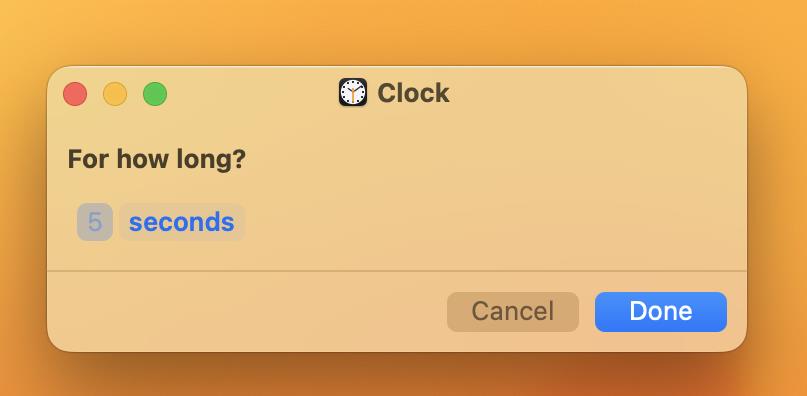
Similarly, you can use Spotlight to start alarms, focus, run shortcuts, etc.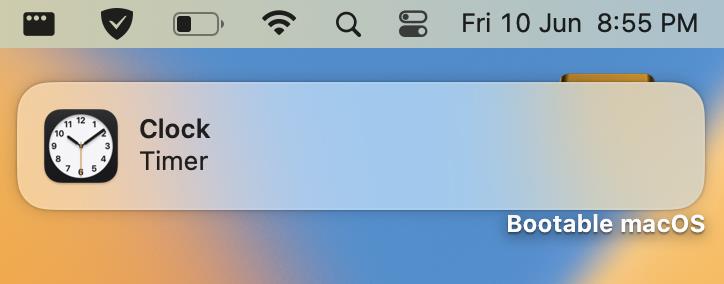
e.g. If I have a Focus named Do Not Disturb, I can search for it and Spotlight will list it among the results. Hitting the return key will turn the focus on or off instantly.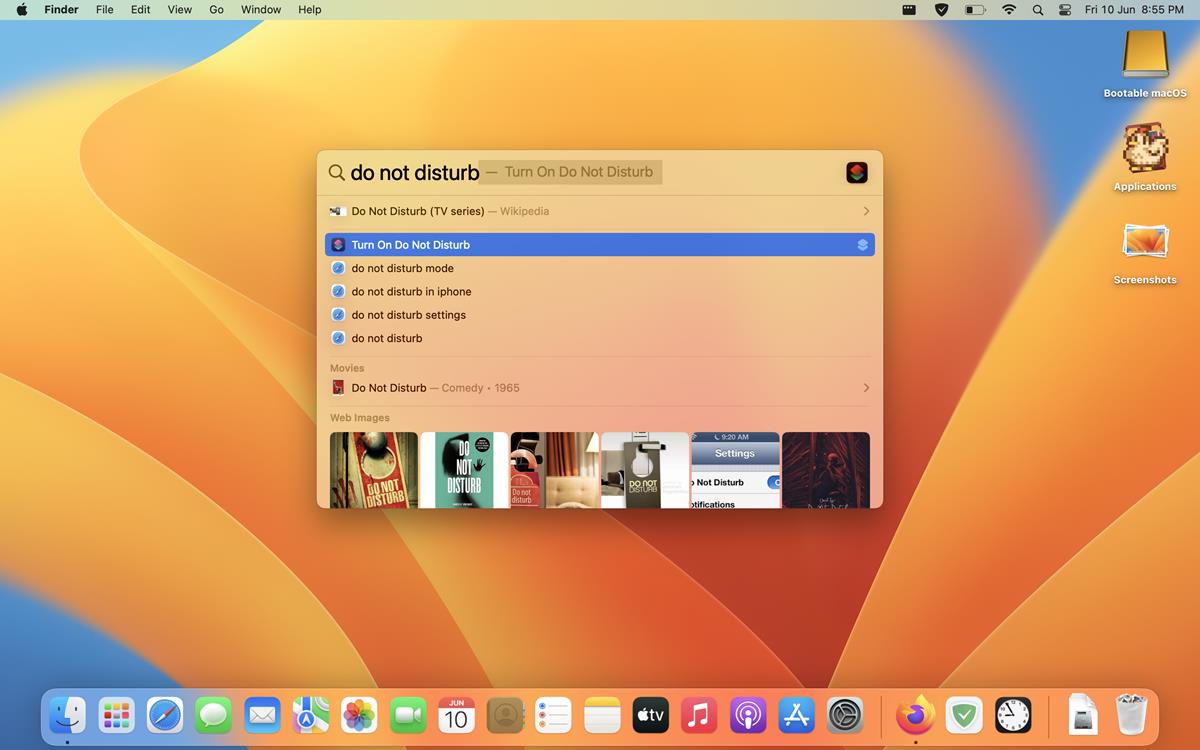
The new Spotlight features in macOS Ventura are welcome additions, but the tool is still way behind third-party apps like Alfred and Raycast when it comes to customization, and workflows.
Read our take on the new multitasking mode in macoS, Stage Manager.
Have you tried the new search options in Spotlight?
Probably Microsoft will get these new advanced features soon. Thanks @Ashwin! :]
Please click on the following link to open the newsletter signup page: Ghacks Newsletter Sign up
Ghacks is a technology news blog that was founded in 2005 by Martin Brinkmann. It has since then become one of the most popular tech news sites on the Internet with five authors and regular contributions from freelance writers.