
Windows 11 version 22H2: snap assist changes – Ghacks

In the third part of the series, we are going to take a closer look at the changes that Microsoft makes to Windows 11’s Snap Assist feature in the Windows 11 2022 update.
Microsoft did not introduce too many new features in Windows 11. Snap Assist, a feature to manage program windows more efficiently, was well received when it was unveiled.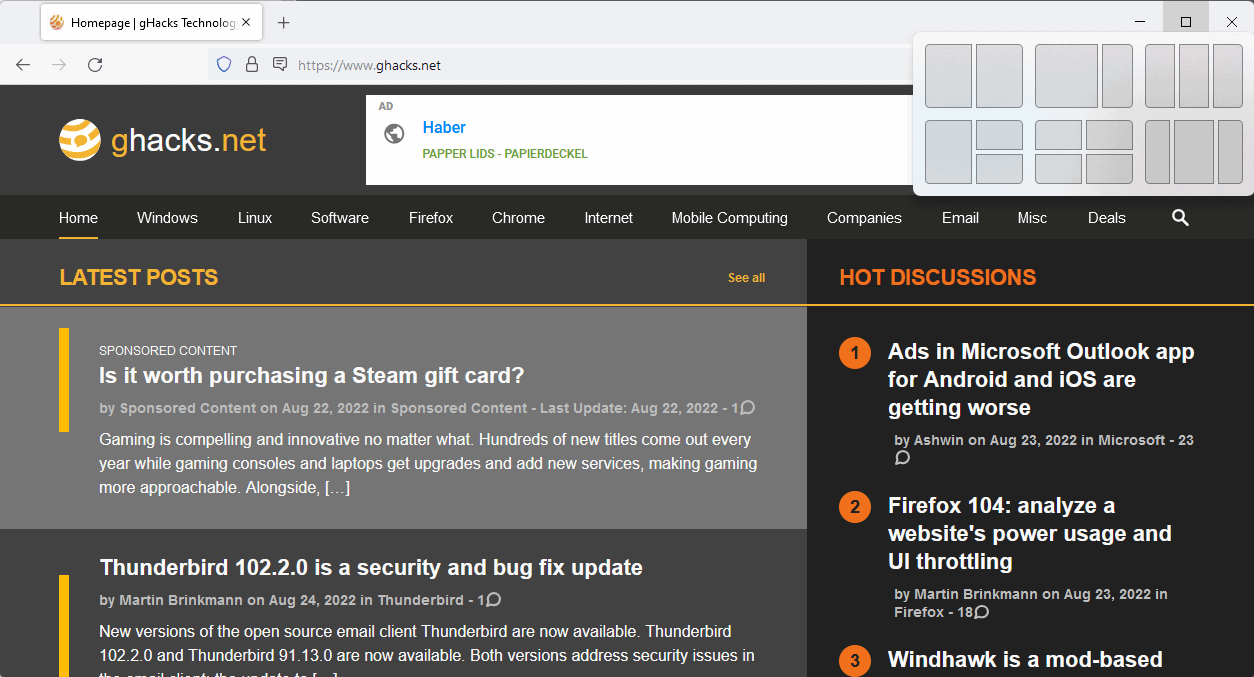
Snap Assist is accessed by hovering the mouse cursor over the maximize button of windows. The keyboard shortcut Windows-Z may also be used to invoke the feature.
Windows 11 displays the available layouts and the selection of one of the layouts aligns the active window and other windows that are open accordingly. Users may choose the location of the active window and of other windows that they want to be visible again.
The beauty of Snap Assist is that it extends Windows’ ability to display multiple windows next to each other on the screen without getting in the way. In fact, many Windows 11 users are probably unaware that Snap Assist does exist. Even those who know that it exists, may forget that it is an option at times.
Windows supports snapping two program windows next to each other on the desktop. All it takes for that is to drop a program window to the left or right side of the screen. Microsoft introduced support for snapping windows to a quarter of the screen in Windows 10. There, users had options to display one window on one side of the screen and two windows split in half vertically, or four windows on the screen, with each occupying a corner of the screen.
Snap Assist extends the availably layouts on larger displays and integrates the functionality so that it becomes accessible in the program window itself.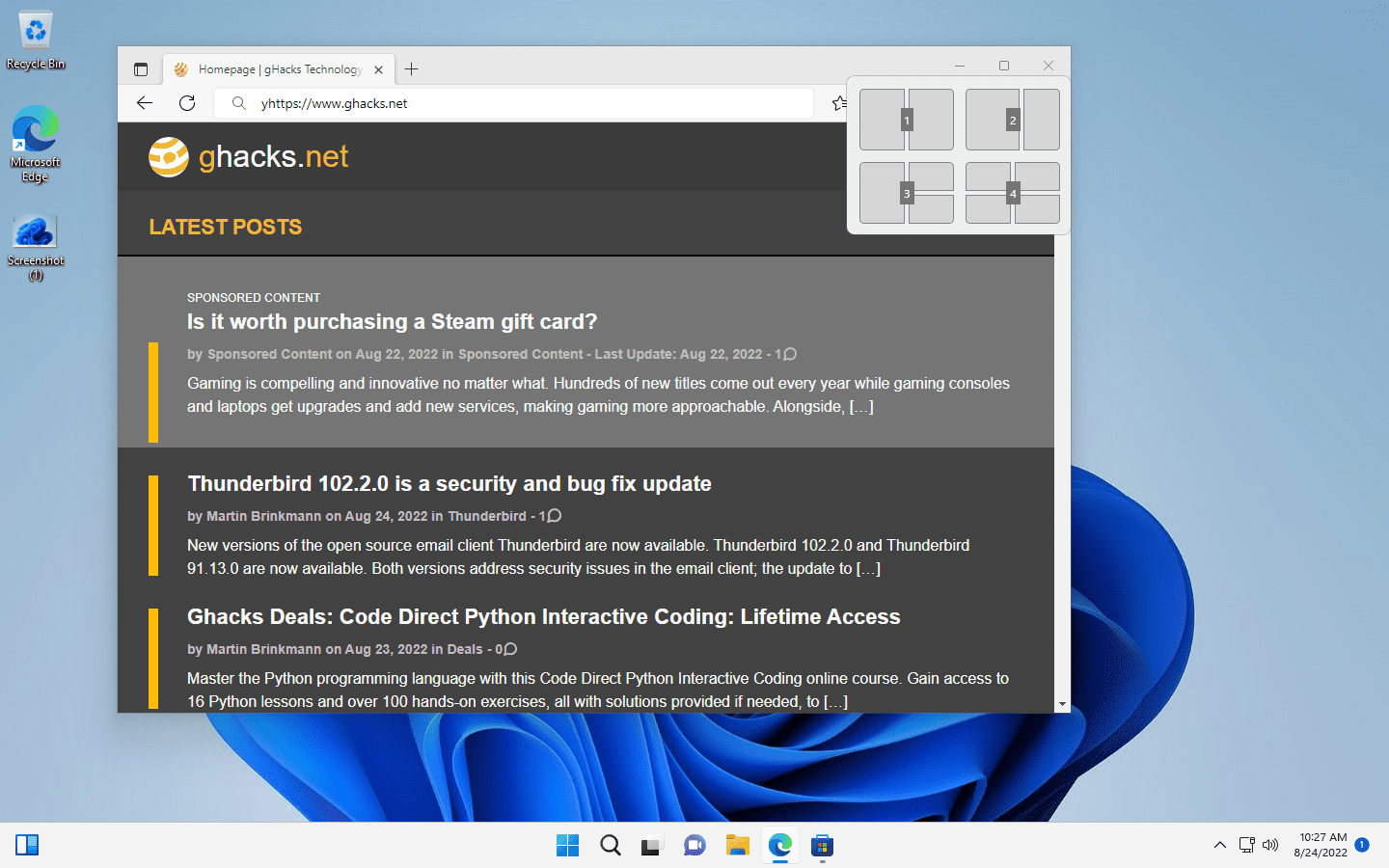
In the release version of Windows 11, keyboard users had no option to select one of the layouts using the keyboard. With the Windows 11 2022 Update comes support for that. Just tap on one of the numbers to select that layout.
Once done, even more numbers, starting with 1, show up for each of the available sections of the selected layout. Press the number to assign the active window to the section of the layout. The remaining open windows are displayed then and may be selected using the arrow keys and the Enter-key.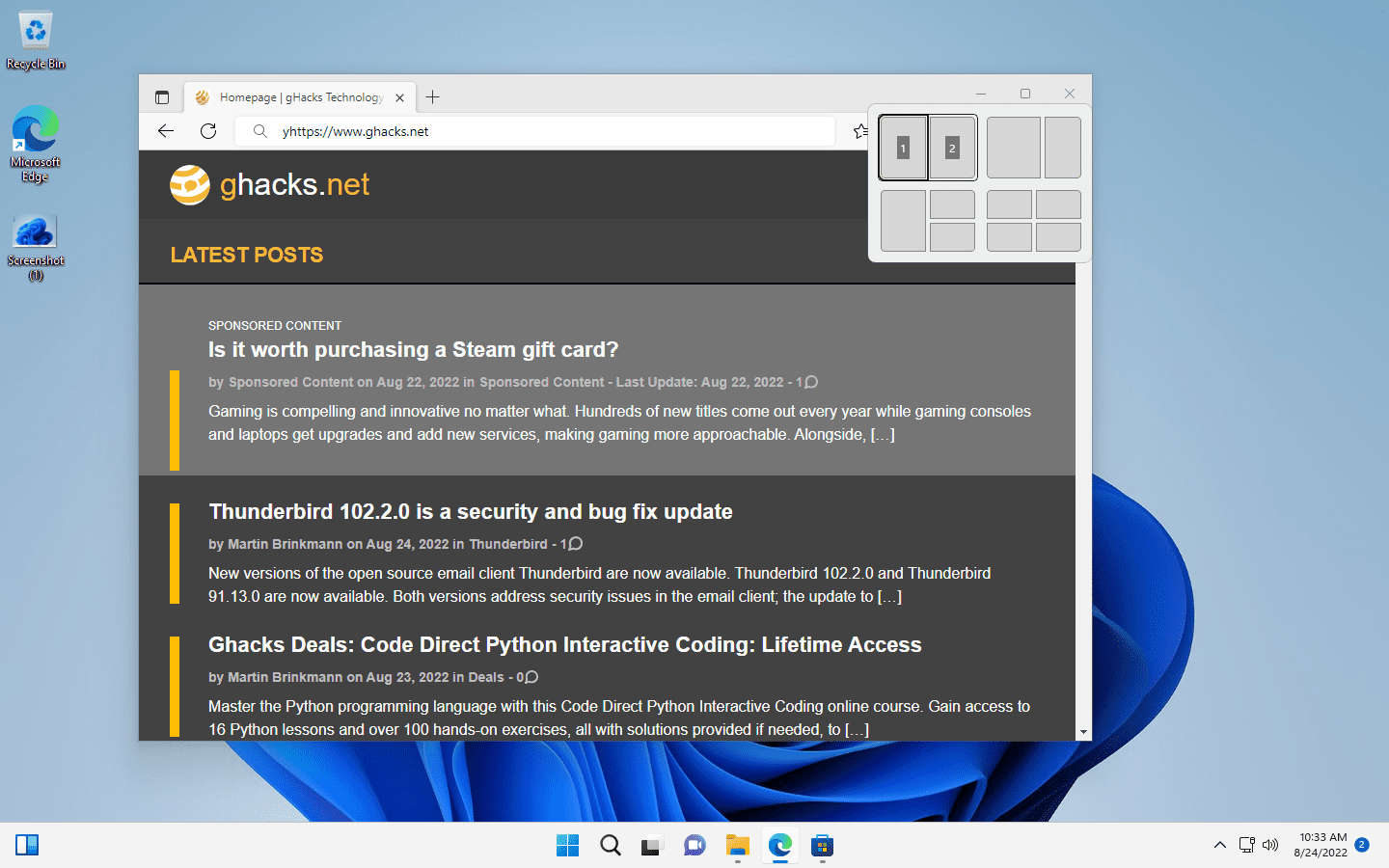
The second change improves the visibility of Snap Assist and unlocks the functionality on touch-powered devices. Whenever a window is moved on the screen, Windows 11 displays a bar at the top. Once the window touches the bar, Snap Assist layouts are displayed. To maximize the windows, move it besides the Snap Assist layouts.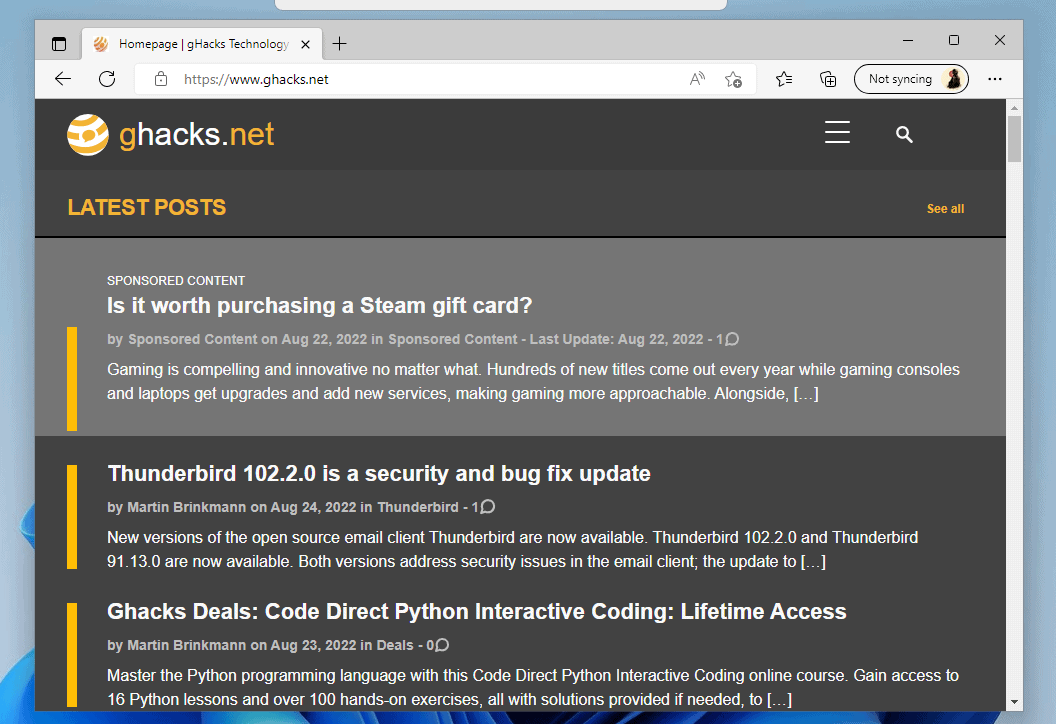
The entire process is very convenient; especially for touch users as it unlocks Snap Assist functionality on their devices.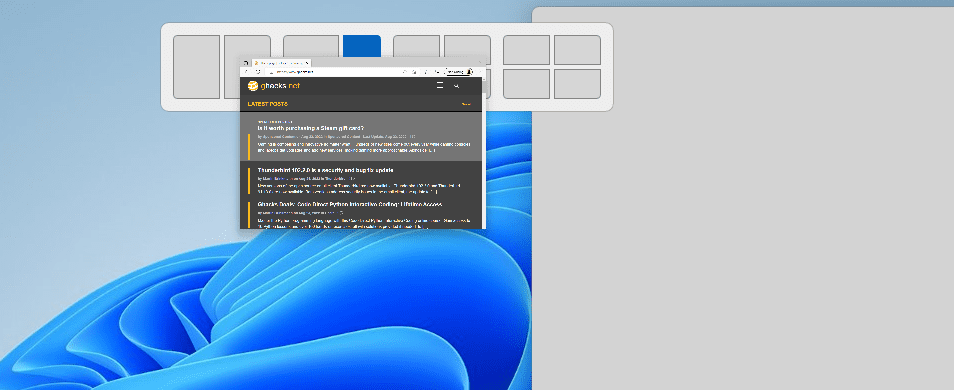
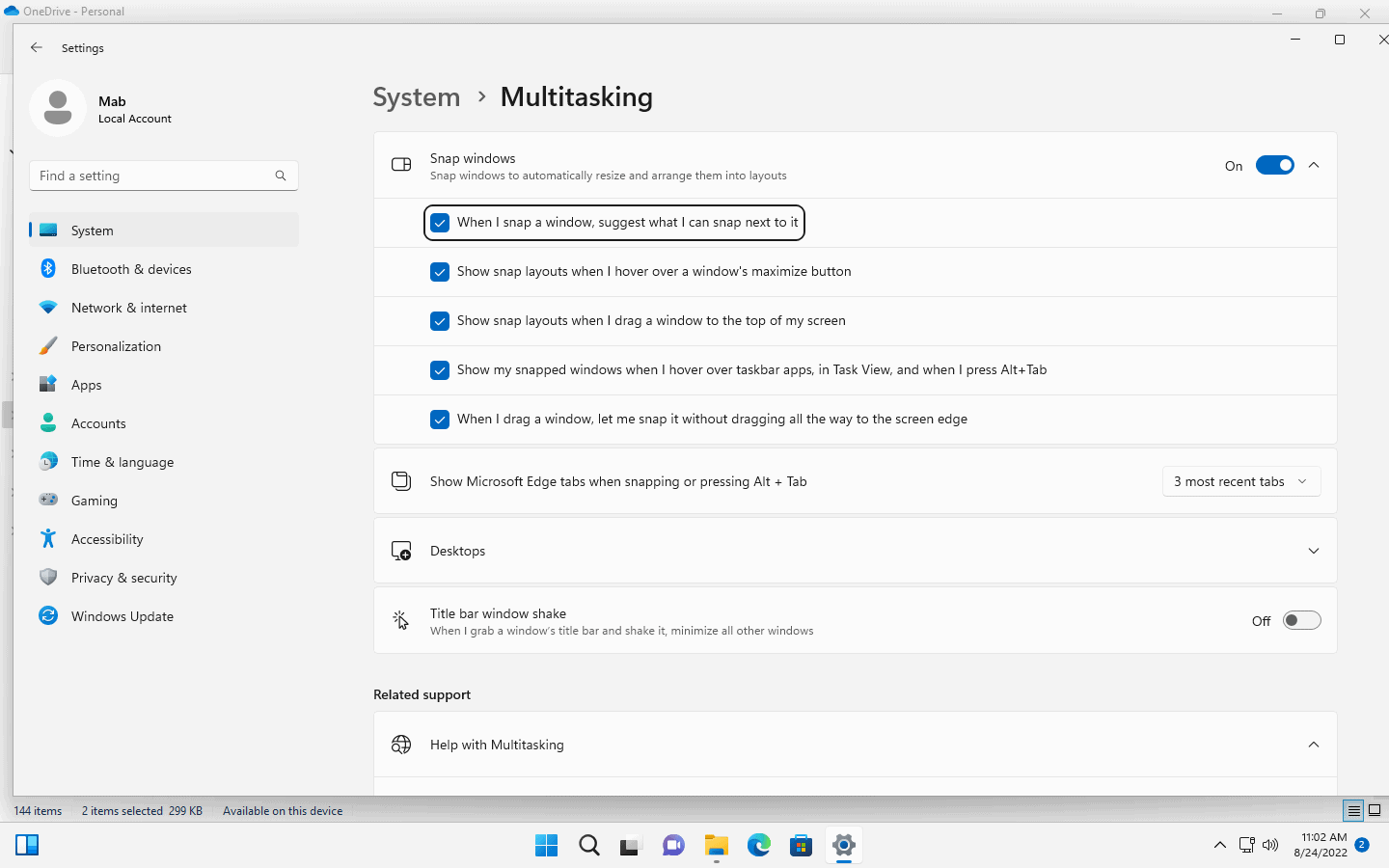
An option to disable Snap Assist entirely is provided. Windows users may also disable some functionality, like the small bar that Windows 11 displays when windows are moved using the settings.
Closing Words
Snap Assist in the upcoming feature update for Windows 11 is getting several needed improvements. It improves the functionality for keyboard users, who could not control it using just the keyboard, and it unlocks it for touch-based device users, who could not use it at all until now, as it required using a keyboard shortcut or a mouse.
The default configuration improves the visibility of Snap Assist for all users, at least those who drag windows around. It is likely that some may notice it for the first time at all, even when they worked on a Windows 11 device for month or even since release.
Snap Assist is still not an all-powerful solution. FreeSnap, released in 2008 and likely not compatible with new Windows releases, offered more functionality and keyboard shortcuts. There is also AquaSnap, which gives users more control over the snapping behavior.
Now You: do you use Snap Assist or snapping functionality in previous Windows versions?
W11 has the worst taskbar and explorer’s menus ever done.
I’m sure it will be like with Windows 8 not having a Start button.
Microsoft will eventually come around and fix it.
For the menu, either they will make it have the functionality of the old one or they will remove it and make the old one look transparent and bigger.
For the taskbar, they will add the functionality eventually.
In both cases it will be long overdue and they will have lost even more goodwill from their users.
After that they will probably come up with some other garbage idea and implement it to see how many people hate it before doing something about it.
Then Windows 12 will come and it will have circular windows instead of rectangular, because the one who calls the shots on new features had a dream about circles.
+1
New keyboard shortcuts is a very nice improvement.
I use Windows 10 and don’t anticipate more function than my current daily need to make one open window “snap” to 50% left and another open window “snap” to 50% right using Win- shortcuts.
“Win- shortcuts” should read “Win – ” shortcuts”.
I cannot type here.
Please click on the following link to open the newsletter signup page: Ghacks Newsletter Sign up
Ghacks is a technology news blog that was founded in 2005 by Martin Brinkmann. It has since then become one of the most popular tech news sites on the Internet with five authors and regular contributions from freelance writers.