
What Is a Computer Hard Drive? – groovyPost

A traditional computer hard drive is the storage pot for your files, operating system, and more. Learn more about this important PC component here.
When you’re buying a computer, you have a number of decisions to make. You’ll need to decide what type of CPU you want, how much RAM you need, and what size hard drive you require.
What is a computer hard drive, exactly? How does a hard drive work and what does it do? What size hard drive should you get, and how can you tell what size hard drive you already have?
All important questions with answers that we’ve outlined below.
A hard drive (also known as a hard disk drive or HDD) is a computer storage device found in many computers. A hard drive is intended for long-term data storage.
Unlike your system RAM, a hard drive will continue to store data even when you turn your computer off.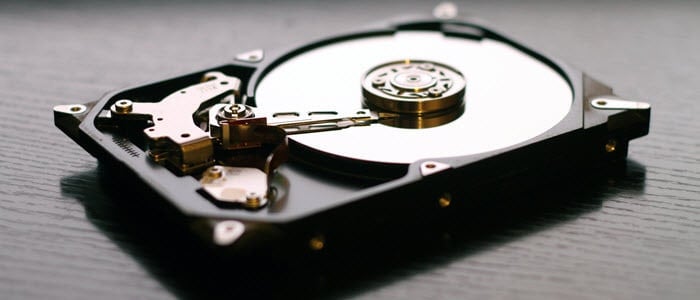
Hard drives were once part of almost every computer. The rise of solid state drives (or SSDs) has started to make the classic hard drive obsolete in modern PCs, thanks to their faster read and write speeds. However, thanks to the large amounts of data that hard drives can store (and increased reliability compared to SSDs), hard drives still have an important role to play in modern computing.
Somewhat confusingly, the term hard drive might be used to refer to a solid state drive if it’s being used as a catch-all term for your long-term computer storage. While this isn’t strictly accurate, it’s important to be aware of this usage of the term.
A hard drive is a component of your computer that stores all of your data, including your documents, photos, videos, apps, and even your operating system. When you use your computer, the relevant information is passed from your hard drive to your computer RAM. The CPU (the brains of your computer) can then quickly access this information from RAM, as it can be read much faster from RAM than it can from your hard drive.
In essence, the hard drive is the long-term memory of your computer, and RAM is the short-term memory.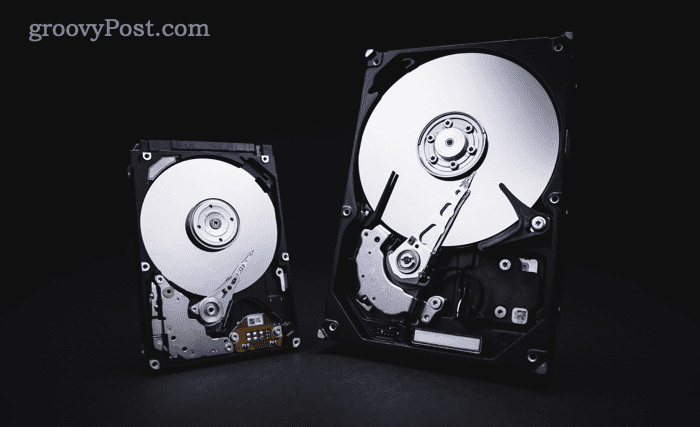
Traditional hard drives use a magnetic disc to store information. This disk is divided into billions of tiny sections—each section can be either magnetized or demagnetized. These areas represent the ones and zeros, or bits, that are the most basic unit of digital information. The way that the hard drive reads and writes these tiny areas is similar to a vinyl record.
The disk spins and a movable head can move back and forth across the disk to read from or write to the disk.
Hard drives can be installed internally in your computer, but you can also purchase external hard drives which connect to your computer and allow you to easily add more hard disk storage space without having to open your computer up.
As mentioned above, the term ‘hard drive’ is often used interchangeably for both classic hard drives and modern SSDs. These are two very different pieces of kit, however, that have significantly different strengths and weaknesses.
A classic HDD uses a magnetic disk to store information. This offers a lot of benefits, one of the most important of which is that HDDs can offer high storage capacities at relatively inexpensive prices. The downside is that the way data is stored and retrieved makes HDDs comparatively slow. To access information on the disk, the head needs to move to the correct place on the disk before it can read it. If data is spread across a number of separate locations, the head must visit them all in turn.
This inevitably takes time, although modern HDDs are certainly no slouches. In comparison, an SDD has no moving parts. All of the data is stored in millions of transistors that are turned on or off. It’s similar to the type of storage that you find in a memory card or a thumb drive.
Since retrieving the data doesn’t require any physical parts to move, SSDs can work significantly faster than classic HDDs. The payoff is that an SSD is much more expensive than an HDD of the same capacity. There are also other differences—since an SSD has no moving parts, it’s much less susceptible to damage from being dropped than an HDD is. On the flip side, HDDs tend to last longer than SSDs do.
The type of drive you will need will depend on what is most important to you. If you’re looking for blazing speeds and don’t require that much storage space, an SSD is a good bet. If speed isn’t a huge issue, but you really need a lot of storage space, a classic HDD is a much more cost-effective option.
The size of the hard drive that you need depends on how you use your computer and the amount of data you need to store.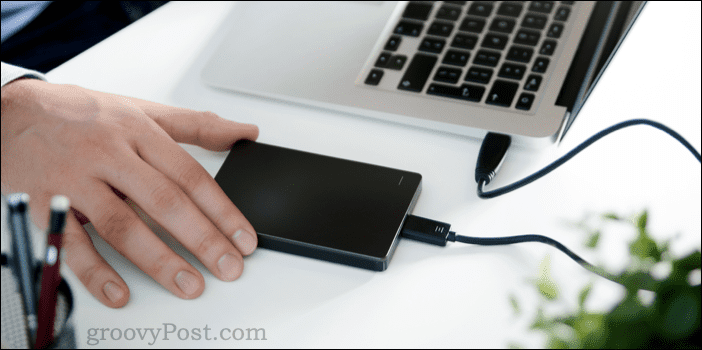
Your operating system and any apps that you choose to install will take up some of the space on your hard drive. The rest of the space in your hard drive is available for saving files. You might also choose to use a separate external hard drive to make a backup of your entire system. This means that if anything goes wrong, you can restore everything from your backup.
Hard drives usually offer gigabytes or terabytes of storage space. One terabyte is equivalent to 1,000 gigabytes, although due to the discrepancies between decimal and binary formats, a 1 TB hard drive may actually have slightly fewer than 1,000 GB.
To give you some idea of the size of the hard drive you’ll need, these are some rough approximations of the sizes of different types of files:
As you can see, how much you can fit on your hard drive depends entirely on the type of information you’re storing. For example, 1,500,000,000 Word documents could take up the same amount of space as an hour of 4K video. You will also need to factor in the amount of space that your operating system and apps will take up, which can be 50 GB or more.
Your needs may vary, but as a rule of thumb, up to 500 GB should be sufficient for light use, up to 1 TB will meet the needs of most users, and if you’re a heavy user, you might need multiple terabytes of storage space.
When your hard drive gets too full, you may find that your computer starts to slow down significantly. If you think your hard drive may be too small, you can check how large it is, and how much of it is in use.
You can see information about the size of drives on your computer through File Explorer. However, if your hard drive is partitioned into multiple smaller drives (you might have a C drive and a D drive, for example) then you can’t see the total size of your hard drive. To find the total size of your physical hard drive, you can use the Disk Management utility.
To find your hard drive size on Windows:
You can find information about any hard drives installed in or connected to your Mac in just a few clicks.
To find your hard drive size on Mac:
Your computer hard drive is one of the most important parts of your computer. If it fails, you can potentially lose all of your files. That’s why it’s important to look after your hard drive, and also be sure to have backups in place.
You can head off problems before they occur by checking if your hard drive is going to fail. You can also try to prevent hard drive failures by checking for and fixing disk errors. If things go wrong, it may be possible to recover data from a hard drive that won’t boot.
It’s always wise to keep a full system backup in case the worst does happen. You don’t necessarily need additional hard drive space to do so; you could also consider backing up your data to the cloud.
Your email address will not be published. Required fields are marked *
Public profiles on Snapchat give you greater exposure and the chance to reach more users. Here’s how to make a public profile…
If you need to transfer your Windows 11 product key or just need it to do a clean install of the OS,…
Backing up your data to the cloud via an automated service is critical. Backblaze is the solution I use and recommend. Here’s…
Chrome does an excellent job of storing your browsing history, cache, and cookies to optimize your browser performance online. Hers’s how to…
Buying in-store doesn’t mean you have to pay higher prices. Thanks to price-matching guarantees, you can get online discounts while shopping in…
Copyright © 2007-2021 groovyPost™ LLC | All Rights Reserved